Installation
Make sure that the Requirements and Security requirements are in place.
Installing Performance Store is done easily via the Performance Store Installer executable.
SQL Server port
When entering a SQL Server for the Performance Store database, a port number must also be given. A SQL Server can contain multiple ports, so chose the port for the primary use.
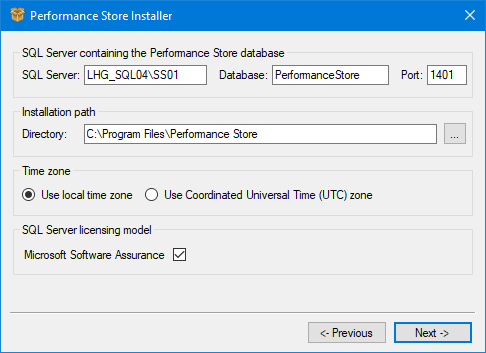
If not knowing the port, the available ports can be found on the SQL Server with this:
select distinct c.local_tcp_port
from sys.dm_exec_connections c
where c.local_net_address is not null
and c.protocol_type = 'TSQL'
SQL Server licensing model
When Performance Store calculates the number of SQL Server licenses needed, the calculations are different based on if Microsoft Software Assurance is used or not.
All values can be changed at a later time in the Performance Store Control Center.
Start menu shortcuts
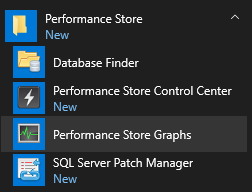
After installing Performance Store, shortcuts can be found in the Start Menu:
For usage after installation, see the Quick Start Guide.
Upgrading
Performance Store is easily upgraded through the Performance Store Installer executable. The installer will make sure all components will be upgraded if necessary.
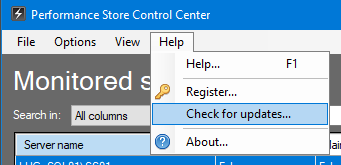
To check for new updates, use the Performance Store Control Center:
Uninstallation
Performance Store is easily removed again from Programs and Features in the Windows Control Panel, or the Performance Store Installer executable:
Note, if trying to uninstall, and the Performance Store database or SQL Server is not available, a forced uninstall can be done by executing: “PerformanceStoreInstaller.exe” -u
“PerformanceStoreInstaller.exe” can be found in the Performance Store installation directory.
When uninstalling, the following will not be removed:
- The Performance Store database
- The Performance Store license key