Access to SQL Server logs
Normal access to the SQL Server log through SQL Server Management Studio requires sysadmin rights on the server.
Performance Store allows for access to the SQL Server log without sysadmin rights through the Performance Store LogAnalyzer application.
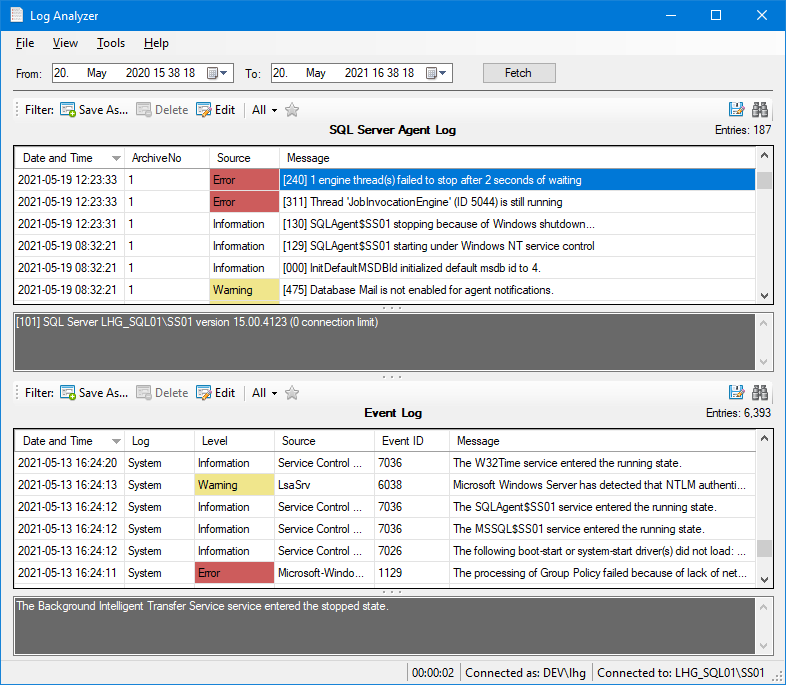
Requirements:
- Access must be set up in the Settings menu, where “Share SQL Server log directory” must be enabled.:

- Also in the Settings menu, a value for “Set SQL Server log directory security every” entry on the “Timers” tab must be set. A value of -1 will disable the functionality. Recommended value is 3600 which means, that the SQL Server log directory security will be set for the individual teams every hour. This value can also be set in the Settings menu in the Performance Store Control Center:

When the above requirements are met, the SQL Server log will be available through a share on each monitored SQL Server, e.g.: \\MySQLServer\MSSQL_SS01_Log
Only users in teams with access to the specific SQL Server will have access to the share. When access to a SQL Server is removed from a team, the corresponding share access is revoked.
To exclude servers from the log sharing functionality, add them to the dbo.share_sql_log_dir_whitelist table.
From the share, the SQL Server log can be directly accessed, or through the Performance Store LogAnalyzer application using the “SQL Server log path” option:
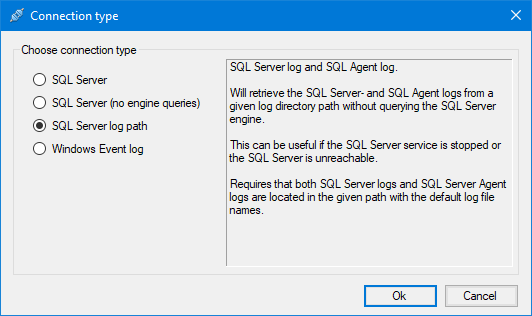
The SQL Server logs can also be opened in Performance Store LogAnalyzer from the command line using the following syntax:
\\PerformanceStoreServer\Tools\LogAnalyzer\LogAnalyzer.exe -p:”\\[SQL Server name]\MSSQL_MSSQLSERVER_Log”